How do I change AlphaBaby's settings?
To prevent any little fingers from changing settings unintentionally, AlphaBaby's settings are hidden a bit. But, it's easy to access them if you know the trick! This works for both AlphaBaby and AlphaBaby Free.
Press and hold the upper left hand corner of the screen for 2 seconds. The corner will slowly turn black, and when it is green, let go and the preferences screen will appear. If you are using an iPhone, the phone will buzz when it is time to release your finger. The preferences screen will appear, allowing you to change various settings, add your own pictures, and record your own voice.
Watch a video:

How do I add my own photos to AlphaBaby?
To add your own photos to AlphaBaby, first switch to the preferences screen by pressing the upper left hand corner for 2 seconds. (See "How do I change AlphaBaby's settings?" for more details).
Next, select the "Pictures" tab at the bottom of the screen. At the bottom of the screen is a toolbar with all or some of the following icons:
Next, select the "Pictures" tab at the bottom of the screen. At the bottom of the screen is a toolbar with all or some of the following icons:
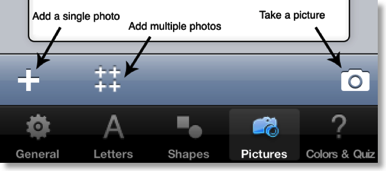
You can always use the single + button to add a single image. You are given the opportunity to scale and crop the image before adding it to AlphaBaby. Devices running iOS 4.0 or higher (4.2 or higher on the iPad) can use the multiple + button to add up to 10 images at once from your photo libraries. This is a much faster and easier way to get a lot of pictures into AlphaBaby quickly. If you are running on a device that has a camera, you can use the camera button to take a picture and add it to AlphaBaby.
Make sure that "Pictures" is checked in the General preferences "Display Options" screen so that any pictures loaded are displayed. Pictures are displayed in a random order.
How do I record my own voice?
To record your own voice in AlphaBaby, first switch to the preferences screen by pressing the upper left hand corner for 2 seconds. (See "How do I change AlphaBaby's settings?" for more details).
You can record your own voice for any object displayed by AlphaBaby - letters, shapes, numbers, photos, and quiz objects.
You must load your own photos before you can record captions for them. (See "How do I add my own photos to AlphaBaby?" for more details).
The same steps are used to record your voice, for whatever sound you are adding or replacing. Press and hold on the object whose sound you would like to record. After just over a second, you will see red "Release to record..." message appear. When you release your finger, AlphaBaby will start to record your sound for just under two seconds. Tap the object again to hear your recorded sound. If you would like to re-record it, just press and hold the object again to record a new sound and replace the old sound. AlphaBaby automatically strips any silence out from the beginning of the sound. If you don't want the sound any more, press the "Edit" button at the top right hand corner of the screen. You can then tap on the icon to remove the sound.
You can record your own voice for any object displayed by AlphaBaby - letters, shapes, numbers, photos, and quiz objects.
You must load your own photos before you can record captions for them. (See "How do I add my own photos to AlphaBaby?" for more details).
The same steps are used to record your voice, for whatever sound you are adding or replacing. Press and hold on the object whose sound you would like to record. After just over a second, you will see red "Release to record..." message appear. When you release your finger, AlphaBaby will start to record your sound for just under two seconds. Tap the object again to hear your recorded sound. If you would like to re-record it, just press and hold the object again to record a new sound and replace the old sound. AlphaBaby automatically strips any silence out from the beginning of the sound. If you don't want the sound any more, press the "Edit" button at the top right hand corner of the screen. You can then tap on the
icon to remove the sound.
How do I record my own voice for letters, numbers, or shapes?
In the AlphaBaby preferences screen, select the category you'd like to record: "Letters" for letters and numbers, "Shapes", or "Colors & Quiz". You can tap the object to hear its default sound. Press and hold the object until the red "Release to record" message appears. When you release your finger, you will have about 2 seconds to record your own sound. Your sound will now replace the built-in sound for that object. Objects with custom sounds display the  icon in their lower right hand corner. If you want to delete a custom sound, tap the "Edit" button in the upper right hand corner of the screen and tap the icon to remove a sound.
icon in their lower right hand corner. If you want to delete a custom sound, tap the "Edit" button in the upper right hand corner of the screen and tap the icon to remove a sound.
Help! Pressing in the upper left hand corner does nothing!
AlphaBaby allows you to disable the special "open preferences" button in the upper left hand corner of the screen. If you can't open the preferences windows, it is likely that you have turned off access to the preferences window. This can be re-enabled by using the Settings app on your device. Launch the Settings app (its icon looks like a set of gears), and scroll down to the section of application-specific preferences. You will see an entry for "AlphaBaby". Select it, and make sure the "Enable App Prefs" button is set to "ON".
How do I prevent the Home button from exiting AlphaBaby?
Unfortunately, there is no way to stop the Home button on your device from exiting AlphaBaby. Apple is very careful not to let any app take over a device. This is a good thing, as it lets incoming calls come through, and prevents the device from being crashed by an unstable app.
One tip that can help is to put AlphaBaby on an application page all by itself, or with other kid-friendly apps. This way, if the home button is pressed, at least the immediate screen that is shown does not contain more sensitive apps.
One tip that can help is to put AlphaBaby on an application page all by itself, or with other kid-friendly apps. This way, if the home button is pressed, at least the immediate screen that is shown does not contain more sensitive apps.
Does AlphaBaby support any language other than English?
AlphaBaby only contains built-in sounds in English. However, you can replace any of the built-in sounds with your own voice. This allows AlphaBaby to speak in whatever language or dialect you'd like! See "How do I record my own voice?" for instructions on recording your own sounds.
How do I get phonetic letter sounds instead of letter names?
AlphaBaby does not come with phonetic pronunciations for letters. However, you can easily record your
Help! I don't hear any sounds coming from AlphaBaby.
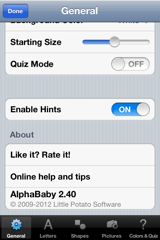
AlphaBaby changed how sound works in version 2.4. So, the steps you need to take to make sure your volume is high enough depend on your version. Newer versions of AlphaBaby use the music volume, NOT the alert or ringer sound volume.
To check your version, scroll down to the bottom of the General Prefs screen in AlphaBaby:
Steps for Version 2.40 and newer:
First, make sure the mute switch on your device is not turned on. Next, use the volume keys on the side of your device to ensure that your volume level is high enough.
On an iPad, make sure sounds are not muted by first double-tapping the home button. Swipe to the right to reveal the volume controls:

Make sure the speak icon on the left is not muted
and make sure that the volume slider to the right is not set all the way to the left.
If your iPad does NOT have the speaker icon as shown above, then this means the side switch is the mute switch. Make sure this switch is not in the "down" or "red dot" position.
For more info on using the side switch on the iPad, see this great article from Apple.
Steps for Version 2.3 and older:
First, make sure the mute switch on your device is not turned on. Then, make sure your ringer volume is not set to the lowest level. The best way to check this is to exit out of AlphaBaby, and then adjust the volume. You should see a sound icon with the label "ringer" on it appear as you adjust the volume. Adjusting the volume while in AlphaBaby will not work - you need to adjust the ringer volume instead.
If you are on an iPad, you may need to go to the "General" settings in the "Settings" app. Once in the General settings, select "Sounds". There you will see a slider and a switch. The slider controls the volume used by AlphaBaby, so make sure that it is turned on. If you want to be able to adjust the volume of AlphaBaby using the volume buttons on the iPad, turn on the switch named "Change with Buttons".
To check your version, scroll down to the bottom of the General Prefs screen in AlphaBaby:
Steps for Version 2.40 and newer:
First, make sure the mute switch on your device is not turned on. Next, use the volume keys on the side of your device to ensure that your volume level is high enough.
On an iPad, make sure sounds are not muted by first double-tapping the home button. Swipe to the right to reveal the volume controls:
Make sure the speak icon on the left is not muted
and make sure that the volume slider to the right is not set all the way to the left.
If your iPad does NOT have the speaker icon as shown above, then this means the side switch is the mute switch. Make sure this switch is not in the "down" or "red dot" position.
For more info on using the side switch on the iPad, see this great article from Apple.
Steps for Version 2.3 and older:
First, make sure the mute switch on your device is not turned on. Then, make sure your ringer volume is not set to the lowest level. The best way to check this is to exit out of AlphaBaby, and then adjust the volume. You should see a sound icon with the label "ringer" on it appear as you adjust the volume. Adjusting the volume while in AlphaBaby will not work - you need to adjust the ringer volume instead.
If you are on an iPad, you may need to go to the "General" settings in the "Settings" app. Once in the General settings, select "Sounds". There you will see a slider and a switch. The slider controls the volume used by AlphaBaby, so make sure that it is turned on. If you want to be able to adjust the volume of AlphaBaby using the volume buttons on the iPad, turn on the switch named "Change with Buttons".
How do I clear the screen?
Give your device a quick back and forth shake to clear all current objects on the screen. If you are in quiz mode, this will clear the current question and show a new question.
I accidentally deleted AlphaBaby - can I reinstall it?
Yes! You can always go to the iTunes App Store and download AlphaBaby again. You will not be charged again. However, all of your custom sounds and photos are deleted and cannot be restored.
How do I change the background color?
First, bring up AlphaBaby's Settings screen by pressing the upper left hand corner of the screen for about 2 seconds. Make sure the "General" tab is selected at the bottom of the screen. About halfway down the screen, you'll see an item for "Background Color". Select it.
You will then have a scrolling list of colors to choose from. Select any color to make it the new background color. If you are on an iPad, you will see the change take effect immediately. If you are on an iPhone or iPod touch, press the "General" button in the upper left corner to go back to the General Setting screen. Press "Done" to return to AlphaBaby. You will now see your new background color!
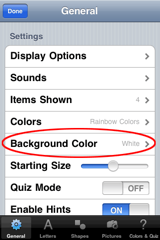
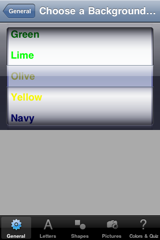
You will then have a scrolling list of colors to choose from. Select any color to make it the new background color. If you are on an iPad, you will see the change take effect immediately. If you are on an iPhone or iPod touch, press the "General" button in the upper left corner to go back to the General Setting screen. Press "Done" to return to AlphaBaby. You will now see your new background color!
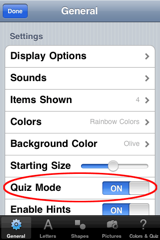
How do I start the Quiz Mode?
First, you need to get into AlphaBaby's settings screen by pressing and holding the upper left hand corner of the screen for about 2 seconds. Next, check the bottom of the screen to make sure you are in the General settings tab. Near the bottom of the screen, you will see a switch to enable Quiz Mode. Make sure the switch is in the "On" position, and press "Done" in the upper left hand corner to close the settings screen. If you are on an iPad, just tap anywhere outside of the settings screen to dismiss it. The screen will now be blank. Tap the screen once to start a quiz. AlphaBaby will use your current settings to determine what kinds of objects to show, and how many you will have to choose from. Tap the correct object to choose it. Once you have chosen the correct object, tap anywhere in the background of the screen to start another quiz.